Tag Cloud

CRM 2011 (161) CRM 4.0 (144) C# (116) JScript (109) Plugin (92) Registry (90) Techpedia (77) PyS60 (68) WScript (43) Plugin Message (31) Exploit (27) ShellCode (26) FAQ (22) JavaScript (21) Killer Codes (21) Hax (18) VB 6.0 (17) Commands (16) VBScript (16) Quotes (15) Turbo C++ (13) WMI (13) Security (11) 1337 (10) Tutorials (10) Asp.Net (9) Safe Boot (9) Python (8) Interview Questions (6) video (6) Ajax (5) VC++ (5) WebService (5) Workflow (5) Bat (4) Dorks (4) Sql Server (4) Aptitude (3) Picklist (3) Tweak (3) WCF (3) regex (3) Config (2) LINQ (2) PHP (2) Shell (2) Silverlight (2) TSql (2) flowchart (2) serialize (2) ASHX (1) CRM 4.0 Videos (1) Debug (1) FetchXml (1) GAC (1) General (1) Generics (1) HttpWebRequest (1) InputParameters (1) Lookup (1) Offline Plug-ins (1) OutputParameters (1) Plug-in Constructor (1) Protocol (1) RIA (1) Sharepoint (1) Walkthrough (1) Web.config (1) design patterns (1) generic (1) iframe (1) secure config (1) unsecure config (1) url (1)

Pages

Saturday, April 06, 2013

RetrieveMultiple Message (CrmService)

Retrieves a collection of business entity instances of a specified type based on query criteria.

The relevant classes are specified in the following table.


Type  Class
Request  RetrieveMultipleRequest
Response  RetrieveMultipleResponse
Entity account, activitypointer, etc

Remarks

To use this message, pass an instance of the RetrieveMultipleRequest class as the request parameter in the Execute method.

To perform this action, the caller must have access rights on the specified entity instance. For a list of required privileges, see RetrieveMultiple Privileges.

For better performance, use the RetrieveMultiple method instead of using this message.

Example

The following code examples show how to use the RetrieveMultiple message.


//# [RetrieveMultiple Message (CrmService)]

// Set up the CRM service.
CrmAuthenticationToken token = new CrmAuthenticationToken();
// You can use enums.cs from the SDK\Helpers folder to get the enumeration for Active Directory authentication.
token.AuthenticationType = 0;
token.OrganizationName = "AdventureWorksCycle";
CrmService service = new CrmService();
service.Url = "http://:/mscrmservices/2007/crmservice.asmx";
service.CrmAuthenticationTokenValue = token;
service.Credentials = System.Net.CredentialCache.DefaultCredentials;

// Create the column set that indicates the fields to be retrieved.
ColumnSet cols = new ColumnSet();

// Set the properties of the column set.
cols.Attributes = new string[] { "name", "accountid" };

// Create the ConditionExpression.
ConditionExpression condition = new ConditionExpression();

// Set the condition for the retrieval to be when the city in the account's address is Sammamish.
condition.AttributeName = "address1_city";
condition.Operator = ConditionOperator.Like;
condition.Values = new string[] { "Sammamish" };

// Create the FilterExpression.
FilterExpression filter = new FilterExpression();

// Set the properties of the filter.
filter.FilterOperator = LogicalOperator.And;
filter.Conditions = new ConditionExpression[] { condition };

// Create the QueryExpression object.
QueryExpression query = new QueryExpression();

// Set the properties of the QueryExpression object.
query.EntityName = EntityName.account.ToString();
query.ColumnSet = cols;
query.Criteria = filter;

// Create the request object.
RetrieveMultipleRequest retrieve = new RetrieveMultipleRequest();

// Set the properties of the request object.
retrieve.Query = query;

// Execute the request.
RetrieveMultipleResponse retrieved = (RetrieveMultipleResponse)service.Execute(retrieve);

Wednesday, April 03, 2013

Serialize and Deserialize Entities

This sample shows how to do standard serialization in Microsoft.NET Framework using Microsoft Dynamics CRM objects.


//CRM4.0 Serialize and Deserialize Entities
using System;
using System.Xml;
using System.Xml.Serialization;
using System.IO;
using CrmSdk;
using Microsoft.Crm.Sdk.Utility;

namespace Microsoft.Crm.Sdk.HowTo
{
///
/// The following sample demonstrates how to serialize a Microsoft Dynamics CRM contact into XML.
/// and then how to deserialize the XML back into a Microsoft Dynamics CRM contact. The sample performs
/// the following steps:
///
/// - Creates a contact to serialize.
/// - Retrieves the contact from Microsoft Dynamics CRM.
/// - Serializes the contact and writes the resulting XML to a file.
/// - Loads the XML file and deserializes it back into a Microsoft Dynamics CRM contact.
/// - Updates the contact in Microsoft Dynamics CRM.
///
/// NOTE: This process does not create Microsoft Dynamics CRM v1.x compatible XML.
///

public class SerializeAndDeserialize
{
static void Main(string[] args)
{
// TODO: Change the server URL and organization to match your Microsoft
// Dynamics CRM Server and Microsoft Dynamics CRM organization.
SerializeAndDeserialize.Run("http://localhost:5555", "CRM_SDK");
}

public static bool Run(string crmServerUrl, string orgName)
{
// Set up the CRM Service.
CrmService service = CrmServiceUtility.GetCrmService(crmServerUrl, orgName);

#region Setup Data Required for this Sample

bool success = false;

#endregion

try
{
#region Create a temporary contact for this sample

// Create a contact entity that will be serialized into XML.
contact contactCreate = new contact();
contactCreate.firstname = "Jesper";
contactCreate.lastname = "Aaberg";
contactCreate.jobtitle = "Doctor";

// Create the entity in Microsoft Dynamics CRM and get its ID.
Guid contactId = service.Create(contactCreate);

#endregion

#region Retrieve the contact from CRM

// Create the column set object that indicates the fields to be retrieved.
ColumnSet columns = new ColumnSet();
columns.Attributes = new string [] {"contactid",
"firstname",
"lastname",
"jobtitle"};

// Retrieve the contact from Microsoft Dynamics CRM
// using the ID of the record that was just created.
// The EntityName indicates the EntityType of the object being retrieved.
contact contact = (contact)service.Retrieve(EntityName.contact.ToString(),
contactId,
columns);

#endregion

#region Serialize the contact into XML and save it

// Serialize the contact into XML and write it to the hard drive.
XmlSerializer serializer = new XmlSerializer(typeof(contact));

// Create a unique file name for the XML.
string filename = "Contact_" + contact.contactid.Value.ToString("B") + ".xml";

// Create an instance of StreamWriter to write text to a file.
// The using statement also closes the StreamWriter.
using (StreamWriter writer = new StreamWriter(filename))
{
// Write the XML to disk.
serializer.Serialize(writer, contact);
}

#endregion

#region Deserialize the CRM contact from XML

// Declare a Microsoft Dynamics CRM contact.
contact restoredContact;

using (StreamReader reader = new StreamReader(filename))
{
// Deserialize the contact object.
object tmp = serializer.Deserialize(reader);

// Cast the object into a Microsoft Dynamics CRM contact.
restoredContact = tmp as contact;
}

#endregion

#region Update contact in CRM

// Update the contact in Microsoft Dynamics CRM to verify that the deserialization worked.
restoredContact.jobtitle = "Plumber";
service.Update(restoredContact);

#endregion

#region Delete Data Required for this Sample
service.Delete(EntityName.contact.ToString(), contactId);
#endregion

#region Unit Test: Check if all is ok (test suite)

// If some key things are OK, return true.
if (filename != null &&
filename.Length > "Contact_.XML".Length &&
restoredContact != null)
{
return true;
}
else
{
return false;
}

#endregion
}
catch (System.Web.Services.Protocols.SoapException)
{
// Add your error handling code here.
}

return success;
}
}
}

Sunday, March 31, 2013

How to reference Assemblies in the GAC

If you install assemblies in the GAC and then wonder why you don't see them enumerated in the Add Reference dialogs, or, if you are complaining that if you browse the assembly folder in the Windows directory, you can't see the assembly in order to add a reference to it, read on.

The Add Reference dialog box is path-based and does not enumerate the components from the GAC. The assembly folder under windows is a special folder view and so you cannot browse to an assembly from this folder and expect to be able to Add a reference to it in the normal way.

If you want to use an assembly from the GAC, you should drop your assemblies into a local folder, and then add a reference to the assembly from this folder. You may want to set the "Copy Local" property to False for that assembly if you do not want the assembly to be copied locally to your project folders. At runtime, the application will automatically use the assembly from the GAC.

How to make your custom assemblies appear in the Add Reference dialog:

To display your assembly in the Add Reference dialog box, you can add a registry key, such as the following, which points to the location of the assembly


[HKEY_CURRENT_USER\SOFTWARE\Microsoft\.NETFramework\AssemblyFolders\MyAssemblies]@="C:\\MyAssemblies"
-- where "MyAssemblies" is the name of the folder in which the assemblies reside.


NOTE: You can create the this registry entry under the HKEY_LOCAL_MACHINE hive. This will change the setting for all of the users on the system. If you create this registry entry under HKEY_CURRENT_USER, this entry will affect the setting for only the current user.


For more information about assemblies and the GAC, vist the following MSDN Web Page:

http://msdn.microsoft.com/library/en-us/cpguide/html/cpconglobalassemblycache.asp

GrantAccess Message

Grants a security principal (user or team) access to the specified entity instance.

Remarks

To use this message, pass an instance of the GrantAccessRequest class as the request parameter in the Execute method.

This action applies to all child instances of the target entity instance. For all child instances, if the caller does not have share privileges for those entity types, or share rights to the instances, the child instances are not shared. As a result, the owner of the instance, or a user who shares the instance with share rights, automatically has share rights to all child instances of the target entity instance. In this case, only the lack of privileges for a particular entity type prevents the child instances from being shared.

See Cascading Rules for a description of how actions on a parent instance affect child instances.

To perform this action, the caller must have access rights on the entity instance specified in the request class. For a list of required privileges, see GrantAccess Privileges.


//# The following code example shows how to use the GrantAccess message.
// Set up the CRM service.
CrmAuthenticationToken token = new CrmAuthenticationToken();
// You can use enums.cs from the SDK\Helpers folder to get the enumeration for Active Directory authentication.
token.AuthenticationType = 0;
token.OrganizationName = "AdventureWorksCycle";

CrmService service = new CrmService();
service.Url = "http://:/mscrmservices/2007/crmservice.asmx";
service.CrmAuthenticationTokenValue = token;
service.Credentials = System.Net.CredentialCache.DefaultCredentials;

// Create the SecurityPrincipal Object
SecurityPrincipal principal = new SecurityPrincipal();
principal.Type = SecurityPrincipalType.User;

// PrincipalId is the Guid of the user to whom access is being granted
principal.PrincipalId = new Guid("7B222F98-F48A-4AED-9D09-77A19CB6EE82");

// Create the PrincipalAccess Object
PrincipalAccess principalAccess = new PrincipalAccess();

// Set the PrincipalAccess Object's Properties
principalAccess.Principal = principal;

// Gives the principal access to read
principalAccess.AccessMask = AccessRights.ReadAccess;

// Create the Target Object for the Request
TargetOwnedAccount target = new TargetOwnedAccount();

// EntityId is the Guid of the account access is being granted to
target.EntityId = new Guid("6A92D3AE-A9C9-4E44-9FA6-F3D5643753C1");

// Create the Request Object
GrantAccessRequest grant = new GrantAccessRequest();

// Set the Request Object's properties
grant.PrincipalAccess = principalAccess;
grant.Target = target;

// Execute the Request
GrantAccessResponse granted = (GrantAccessResponse)service.Execute(grant);


Wednesday, March 27, 2013

Return a Calculated Value

The following sample workflow activity demonstrates how to return a calculated value from an activity.

 
using System;
using System.Collections;
using System.Workflow.ComponentModel.Compiler;
using System.Workflow.ComponentModel.Serialization;
using System.Workflow.ComponentModel;
using System.Workflow.ComponentModel.Design;
using System.Workflow.Runtime;
using System.Workflow.Activities;
using System.Workflow.Activities.Rules;
using System.Reflection;

using Microsoft.Crm.Workflow;
using Microsoft.Crm.Sdk;
using Microsoft.Crm.SdkTypeProxy;
using Microsoft.Crm.Sdk.Query;

namespace SampleWorkflows
{
[CrmWorkflowActivity("Return a Calculated Value")]
public class AddActivity : Activity
{

protected override ActivityExecutionStatus Execute(ActivityExecutionContext executionContext)
{
result = new CrmNumber(a.Value + b.Value);
return base.Execute(executionContext);
}

public static DependencyProperty aProperty =
DependencyProperty.Register("a",
typeof(CrmNumber),
typeof(AddActivity));

[CrmInput("a")]
public CrmNumber a
{
get
{
return (CrmNumber)base.GetValue(aProperty);
}
set
{
base.SetValue(aProperty, value);
}

}

public static DependencyProperty bProperty =
DependencyProperty.Register("b",
typeof(CrmNumber),
typeof(AddActivity));

[CrmInput("b")]
public CrmNumber b
{
get
{
return (CrmNumber)base.GetValue(bProperty);
}
set
{
base.SetValue(bProperty, value);
}

}

public static DependencyProperty resultProperty =
DependencyProperty.Register("result",
typeof(CrmNumber),
typeof(AddActivity));

[CrmOutput("result")]
public CrmNumber result
{
get
{
return (CrmNumber)base.GetValue(resultProperty);
}
set
{
base.SetValue(resultProperty, value);
}

}
}
}


ASHX file Handler

In ASP.NET, you probably spend most of your time creating .aspx files with .cs files as code behind or use .ascx files for your controls and .asmx files for web services.
A web handler file works just like an aspx file except you are one step back away from the messy browser level where HTML and C# mix. One reason you would write an .ashx file instead of an .aspx file is that your output is not going to a browser but to an xml-consuming client of some kind.

Working with .ashx keeps you away from all the browser technology you don't need in this case. Notice that you have to include the IsReusable property.

What does the code there do?

It defines two parts of the IHttpHandler interface. The important part is ProcessRequest(), which will be invoked whenever the Handler.ashx file is requested or pointed to.

      
<%@ WebHandler Language="C#" Class="Handler" %>
using System;
using System.Web;
public class Handler : IHttpHandler
{
public void ProcessRequest(HttpContext context)
{
context.Response.ContentType = "text/plain";
context.Response.Write("Hello World");
}
public bool IsReusable
{
get{ return false; }
}
}


Using query strings:

Developers commonly need to use the QueryString collection on the Request. You can use the Request.QueryString in the Handler just like you would on any ASPX web form page.

      
<%@ WebHandler Language="C#" Class="QueryStringHandler" %>
using System;
using System.Web;
public class QueryStringHandler : IHttpHandler
{
public void ProcessRequest (HttpContext context)
{
HttpResponse r = context.Response;
r.ContentType = "image/png";
string file = context.Request.QueryString["file"];
if (file == "Arrow")
{
r.WriteFile("Arrow.gif");
}
else
{
r.WriteFile("Image.gif");
}
}
public bool IsReusable
{
get{ return false; }
}
}


Now Debug the application:

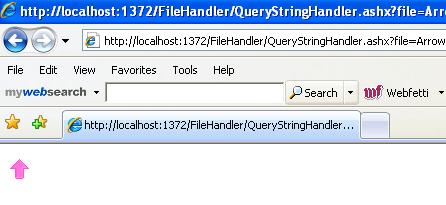
When you pass Fille='Arrow' in query string like as follows

http://localhost:1372/FileHandler/QueryStringHandler.ashx?file=Arrow You will get the folowing output:
Image 1.JPG
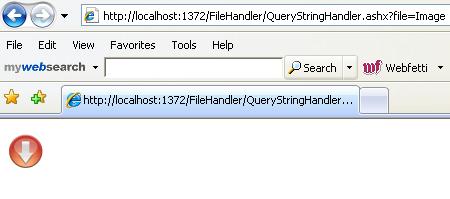
Otherwise you will get following output:
Image2.JPG
http://localhost:1372/FileHandler/QueryStringHandler.ashx?file=Image

The above code receives requests and then returns a different file based on the QueryString collection value. It will return one of two images from the two query strings.

When we use Handler:

Here I want to propose some guidelines about when to use custom handlers and when to use ASPX web form pages.
Handlers are better for binary data, and web forms are best for rapid development.

Use web forms (ASPX) when you have:


  • Simple HTML pages
  • ASP.NET custom controls
  • Simple dynamic pages

Use handlers (ASHX) when you have:


  • Binary files
  • Dynamic image views
  • Performance-critical web pages
  • XML files
  • Minimal web pages

Tuesday, March 26, 2013

Use of CRM Types in Custom Workflow Activity

The following sample shows how to use each of the types found in Microsoft Dynamics CRM.

Input Parameter: Number

Example


public static DependencyProperty myNumberProperty = DependencyProperty.Register("myNumber", typeof(CrmNumber), typeof(CreateCustomEntity));

[CrmInput("My Integer")]
public CrmNumber myNumber
{
get
{
return (CrmNumber)base.GetValue(myNumberProperty);
}
set
{
base.SetValue(myNumberProperty, value);
}
}


Input Parameter: String


Example


public static DependencyProperty myStringProperty = DependencyProperty.Register("myString", typeof(System.String), typeof(CreateCustomEntity));

[CrmInput("My String")]
public string myString
{
get
{
return (string)base.GetValue(myStringProperty);
}
set
{
base.SetValue(myStringProperty, value);
}
}


Input Parameter: Boolean


Example


public static DependencyProperty myBooleanProperty = DependencyProperty.Register("myBoolean", typeof(CrmBoolean), typeof(CreateCustomEntity));

[CrmInput("My Boolean")]
public CrmBoolean myBoolean
{
get
{
return (CrmBoolean)base.GetValue(myBooleanProperty);
}
set
{
base.SetValue(myBooleanProperty, value);
}
}


Input Parameter: Lookup


Example


public static DependencyProperty myLookupProperty = DependencyProperty.Register("myLookup", typeof(Lookup), typeof(CreateCustomEntity));

[CrmInput("My Lookup")]
[CrmReferenceTarget("account")]
public Lookup myLookup
{
get
{
return (Lookup)base.GetValue(myLookupProperty);
}
set
{
base.SetValue(myLookupProperty, value);
}
}


Input Parameter: Picklist


Example


public static DependencyProperty myPicklistProperty = DependencyProperty.Register("myPicklist", typeof(Picklist), typeof(CreateCustomEntity));

[CrmInput("My Picklist")]
[CrmAttributeTarget("account", "industrycode")]
public Picklist myPicklist
{
get
{
return (Picklist)base.GetValue(myPicklistProperty);
}
set
{
base.SetValue(myPicklistProperty, value);
}
}


Input Parameter: DateTime


Example


public static DependencyProperty myDateTimeProperty = DependencyProperty.Register("myDateTime", typeof(CrmDateTime), typeof(CreateCustomEntity));

[CrmInput("My DateTime")]
public CrmDateTime myDateTime
{
get
{
return (CrmDateTime)base.GetValue(myDateTimeProperty);
}
set
{
base.SetValue(myDateTimeProperty, value);
}
}


Input Parameter: Decimal


Example


public static DependencyProperty myDecimalProperty = DependencyProperty.Register("myDecimal", typeof(CrmDecimal), typeof(CreateCustomEntity));

[CrmInput("My Decimal")]
public CrmDecimal myDecimal
{
get
{
return (CrmDecimal)base.GetValue(myDecimalProperty);
}
set
{
base.SetValue(myDecimalProperty, value);
}
}


Input Parameter: Money


Example


public static DependencyProperty myMoneyProperty = DependencyProperty.Register("myMoney", typeof(CrmMoney), typeof(CreateCustomEntity));

[CrmInput("My Money")]
public CrmMoney myMoney
{
get
{
return (CrmMoney)base.GetValue(myMoneyProperty);
}
set
{
base.SetValue(myMoneyProperty, value);
}
}


Input Parameter: Float


Example


public static DependencyProperty myFloatProperty = DependencyProperty.Register("myFloat", typeof(CrmFloat), typeof(CreateCustomEntity));

[CrmInput("My Float")]
public CrmFloat myFloat
{
get
{
return (CrmFloat)base.GetValue(myFloatProperty);
}
set
{
base.SetValue(myFloatProperty, value);
}
}


Input Parameter: Status


Example


public static DependencyProperty myStatusProperty = DependencyProperty.Register("myStatus", typeof(Status), typeof(CreateCustomEntity));

[CrmInput("My Status")]
[CrmAttributeTarget("account", "statuscode")]
public Status myStatus
{
get
{
return (Status)base.GetValue(myStatusProperty);
}
set
{
base.SetValue(myStatusProperty, value);
}
}

Output Parameter: Lookup


Example


public static DependencyProperty myOutLookupProperty = DependencyProperty.Register("myOutLookup", typeof(Lookup), typeof(CreateCustomEntity));

[CrmOutput("My Output Lookup")]
[CrmReferenceTarget("new_customentity")]
public Lookup myOutLookup
{
get
{
return (Lookup)base.GetValue(myOutLookupProperty);
}
set
{
base.SetValue(myOutLookupProperty, value);
}
}

Execute Method: Using Types


Example


protected override ActivityExecutionStatus Execute(ActivityExecutionContext executionContext)
{

IContextService contextService = (IContextService)executionContext.GetService(typeof(IContextService));
IWorkflowContext context = contextService.Context;

ICrmService crmService = (ICrmService)context.CreateCrmService();

DynamicEntity de = new DynamicEntity("new_customentity");

if (myBoolean != null)
{
de["new_boolean"] = myBoolean;
}
if (myDateTime != null)
{
de["new_datetime"] = myDateTime;
}
if (myDecimal != null)
{
de["new_decimal"] = myDecimal.Value.ToString();
}
if (myFloat != null)
{
de["new_float"] = myFloat;
}

if (myLookup != null)
{
de["new_lookup"] = myLookup;
}
if (myMoney != null)
{
de["new_money"] = myMoney;
}
if (myNumber != null)
{
de["new_number"] = myNumber;
}
if (myPicklist != null)
{
de["new_picklist"] = myPicklist;
}
if (myStatus != null)
{
de["new_status"] = myStatus.Value.ToString();
}
if (myString != null)
{
de["new_stringtext"] = myString;
de["new_memo"] = myString;
}

de["new_activationid"] = new Lookup(EntityName.workflow.ToString(),context.ActivationId);

myOutLookup = new Lookup("new_customentity", crmService.Create(de));
return ActivityExecutionStatus.Closed;
}